
Reading & writing on iPhone and iPad / iOS 26+

Your words,
in their language.

A reply to an overseas teammate. A comment for a fan community. Start with what you want to say. Translate your draft, review and edit it, then insert it into a compatible text field.

Screen translation is described here for the advertising-enabled release candidate. Capture one screen and read a selected part of a game chat, announcement, or website in the main app.

Both translation features are free up to 500 characters per request. One-time Pro supports longer text. No automatic charge.

An original fictional cooperative game scene with teammates crossing a floating bridgeCo-op RPG / Planning before the quest
Teammate in Japan / Japanese

橋、援護頼む!

Write your reply in the app's Translation Draft.

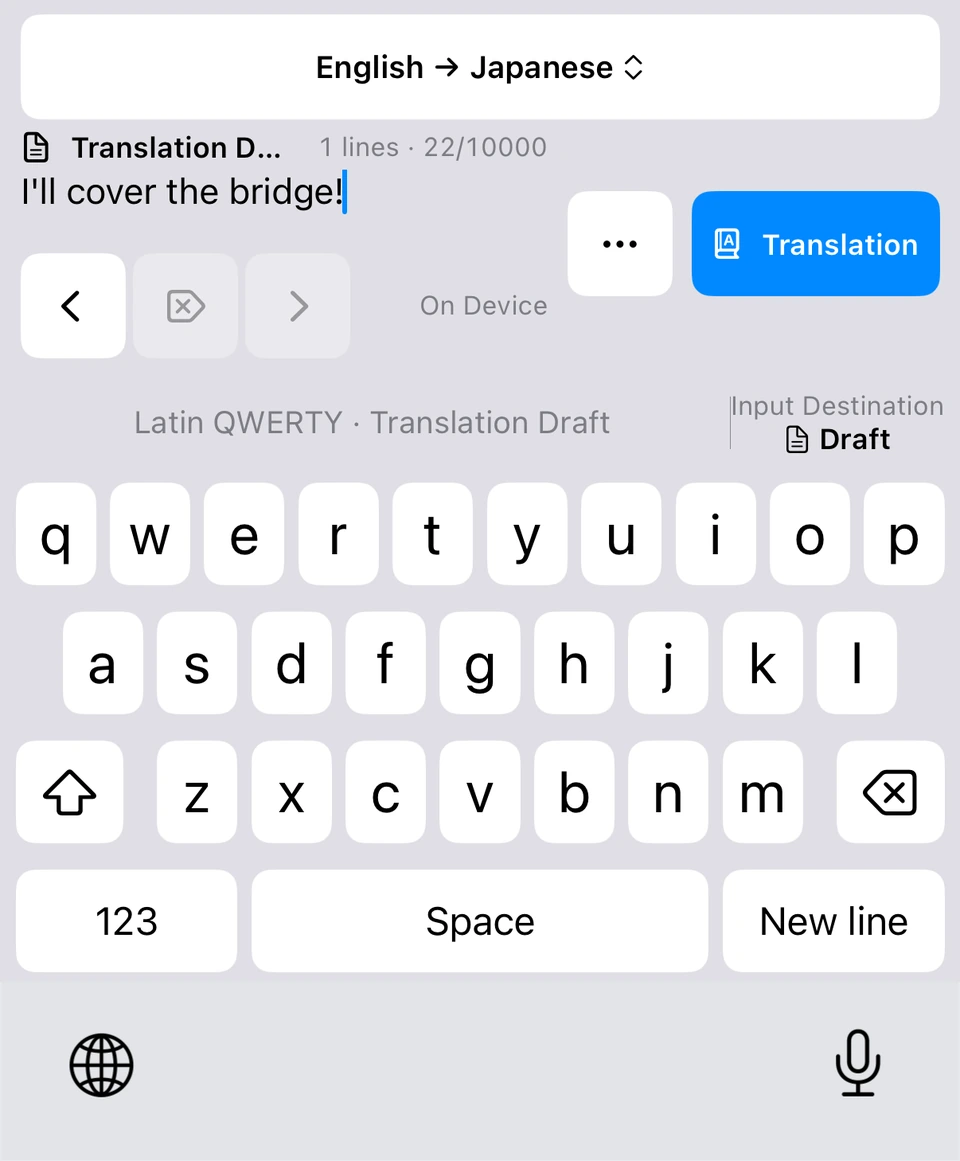
Actual keyboard UI with the English draft I'll cover the bridge, set to translate English into Japanese
A fictional game scene paired with actual keyboard UI. This is not evidence of compatibility with a real game.

A thought to share.
A world to explore.

Coordinate a plan. Talk about a favorite release. Understand a detail before deciding.
Bring reading and writing translation into those everyday moments.

Co-op RPG / U.S. ⇄ Japan

Read the plan.
Reply with your role.

A U.S. player × Japanese-speaking teammates

Before a co-op quest, a teammate in Japan asks for support at the bridge. You want to understand the plan and volunteer to cover it. Explore that lobby conversation in three steps.

Choose a step in the illustrative game workflow
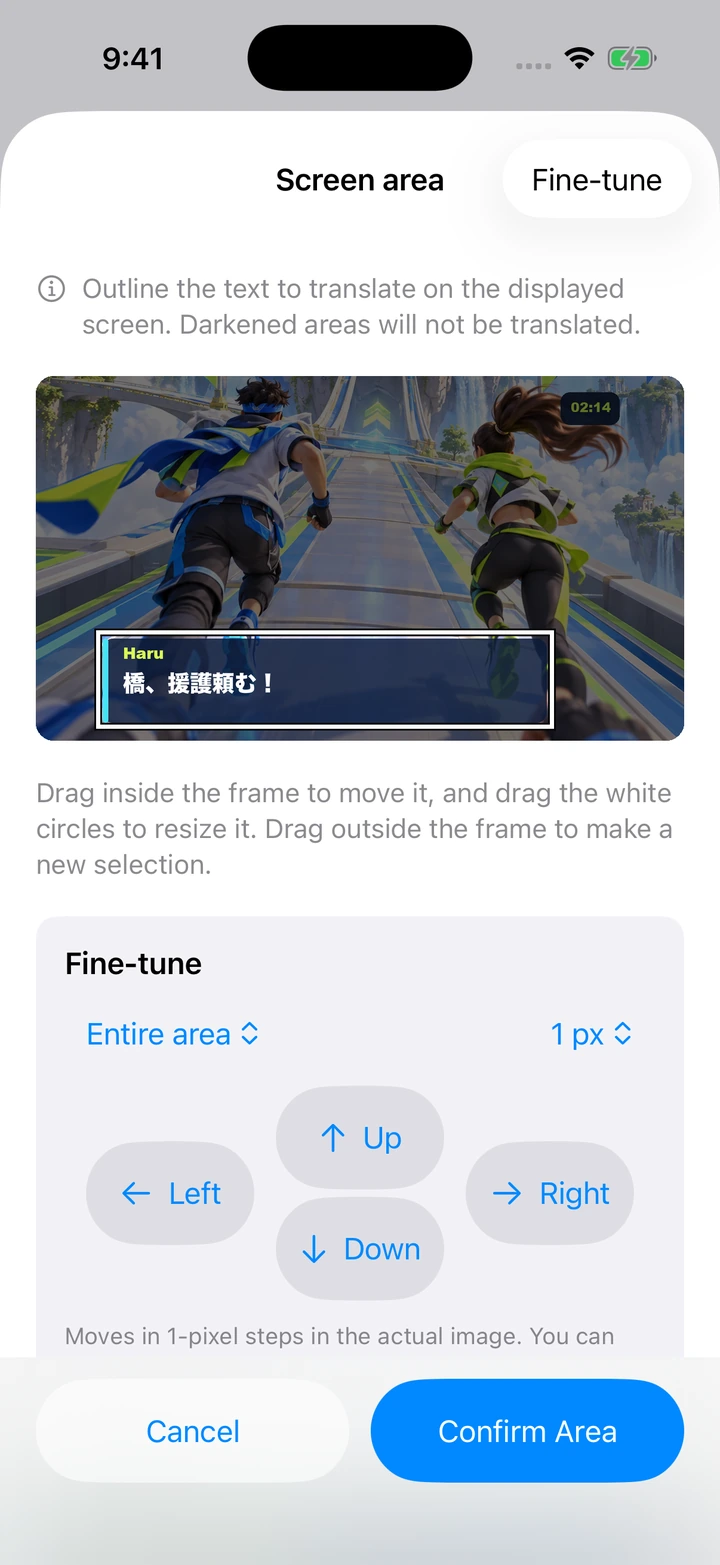
Actual region-setting UI with a fictional game image, selecting the Japanese chat message
Actual app UI with a fictional game screenshot composited into it.

Screen translation Update candidate

Read their message
in the main app.

With the chat visible, run the configured Shortcut. It captures one screenshot and translates the selected region.

Source and translation example / Japanese → English

橋、援護頼む!

Need backup at bridge!

Save the region as “Game chat.” Reuse it when the next screenshot has the same orientation, proportions, and layout.

Translations appear in the main app. They are not overlaid on the game, and new messages are not read continuously.

Actual English keyboard UI with the draft I'll cover the bridge, before translation
Actual keyboard UI, showing the draft before translation.

Keyboard translation

Think of the reply
in your own words.

Return to the game and switch to Translation Keyboard in a compatible text field. Write “I'll cover the bridge!” in Translation Draft and translate it.

Your draft / English → Japanese

I'll cover the bridge!

You can also select text you have already typed. Start with what you want to say, from a short reply to a longer explanation.

The text field must allow third-party keyboards. Availability varies by game.

Illustrative workflow and translation

I'll cover the bridge!
橋を援護するよ!
Review, edit, then Apply Here
Example of insertion into a compatible text field

橋を援護するよ!

Explanatory diagram of review and insertion, not a captured app screen.

Keyboard translation

Check the translation.
Put it in the text field.

Review the result and edit it if needed. Choose Apply Here to insert the reviewed translation, or replace the selected source text.

Translation example / Japanese

橋を援護するよ!

You press Send in the destination app. Check your message before sharing it with the team.

These sentences illustrate the workflow. Actual output depends on the device, language, and source text.

The countries, people, and game form an illustrative scenario. It assumes time to read and reply before a quest or between sessions. Prepare your language pair and check the text field in the game you use.

An illustrative scene of friends enjoying Korean culture together at a café

Read: a fan-organized gathering

팬 모임 안내
토요일 오후 2시 시작
Meaning: fan gathering notice.
Saturday, 2 p.m. start.

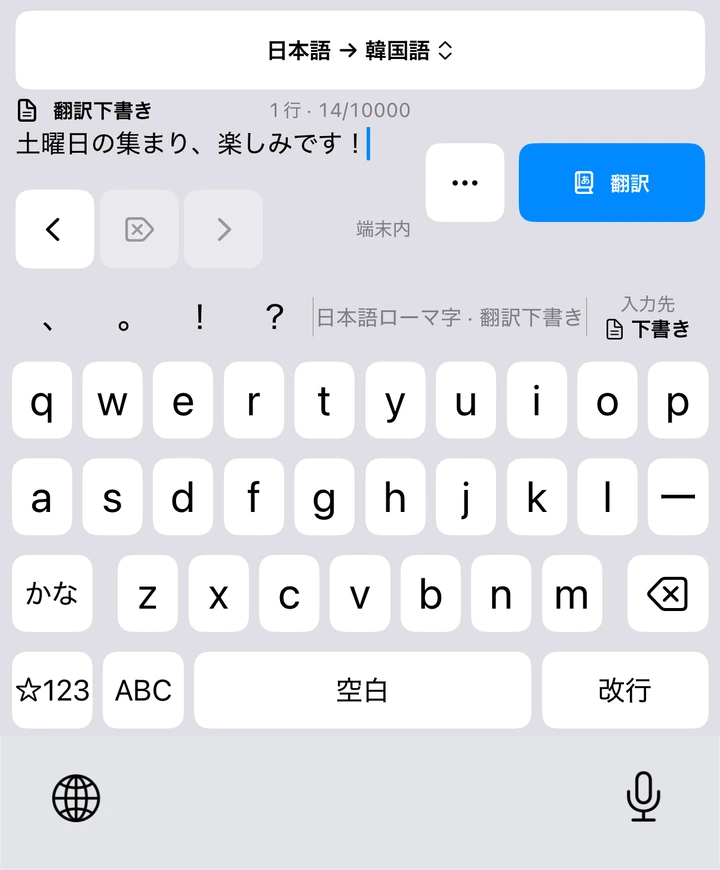
Write: actual Japanese → Korean UI

Actual Japanese keyboard set to translate into Korean, with a draft about looking forward to Saturday's gathering
AI-generated use scene, a fictional notice, and actual Japanese keyboard UI.

Fan communities / Japan ⇄ Korea

Check the time.
Share your excitement.

A Japanese music fan × Korean fan-community hosts

Imagine visiting Korea and joining a fan-organized gathering. Read the start time in the Korean notice image, then tell the community you are looking forward to it. This example shows a Japanese fan reading and replying in Korean.

Read
Select the time and details in the notice image; read them in Japanese in the main app. Update candidate
Write
Write a Japanese draft, review and edit the Korean result, then insert it into a compatible comment field.

Japanese → Korean example / “I'm looking forward to Saturday's gathering!”

土曜日の集まり、楽しみです!

토요일 모임이 기대돼요!

Check dates and numbers against the original. Verify the language pair on your device and keyboard availability in the destination app.

See the reading and writing steps
An illustrative scene of reading international information on a phone

Fictional product-review sample

Everyday canvas bag

The sentence you want to read

バッグは軽いですが、
ストラップは短めです。

Translation example, read in the main app

The bag is lightweight,
but the strap is short.

AI-generated use scene. Review, selection, and translation are explanatory diagrams.

Before buying / Japanese → English

Lightweight, but short?
Check before you buy.

A U.S. shopper × a Japanese store’s customer review

You have found a Japanese bag for your commute. A customer’s review image mentions the strap, but you want to understand the detail before deciding. Read that part in English, then ask a question in Japanese if you need to know more.

Read
Capture once with a Shortcut and select the review text in the image. Read it in English in the main app. Update candidate
Save
Keep the source, translation, and date on device. Find the detail with search or folders while comparing bags. Update candidate

Question example / English → Japanese

Is the strap adjustable?

ストラップの長さは調節できますか?

Screen translation covers one captured screen. To write a question, check that the inquiry field allows third-party keyboards.

Explore screen-region translation

Write with the keyboard.
Read from a selected screen area.

Two different actions, designed for the place where you write and the part you want to read.

Keyboard translation

Write, translate,
and check before using.

Start with a draft or select text in the input field. Translate it, review and edit the result, then insert it.

  1. Write in your own wordsSwitch with the globe key. Open Translation Draft when you need it.
  2. Translate and reviewChoose source and target languages. Check and edit the result before use.
  3. Choose Apply HereInsert into a compatible text field. Press Send yourself in the destination app.
See keyboard setup

Use ordinary text fields. Secure fields and apps that prohibit third-party keyboards switch to the system keyboard.

Actual app keyboard UI and English translation draft, set to translate into Japanese
Actual keyboard UI crop, with the source draft before translation.
Actual app region-setting UI with fictional Japanese game-chat text selected
Actual region UI with a fictional game image. Screen translation is described here for the advertising-enabled release candidate.

Screen translation Update candidate

Give the area
you read a name.

Save frequently used chat or announcement areas as named regions. Next time, capture one screen and translate using a saved region.

  1. Prepare the ShortcutAdd it with the app's guide. Place it in Control Center or another supported convenient location.
  2. Capture once and select a regionOn first use, outline the text on the image and save the region with a name.
  3. Read in the main appSource text, translation, and date go into history, with search and folders for later.

Reuse a region with the same orientation, proportions, and layout. Select it again if the layout changes. Small or obscured text may not be read correctly.

See setup and requirements

UI assets introduce version 1.1.0 and use actual app crops captured in the Simulator. Game, notice, review, and translation examples are illustrative. They are not proof of device translation success or a guarantee of output quality.

For reading and writing
on iPad, too.

A longer explanation for teammates, an update to an overseas friend, or an inquiry before traveling. Work with short replies and drafts containing line breaks.

The free version supports 500 characters per request; Pro supports up to 10,000 character equivalents. Some text reaches the data-size limit first. Check text-field compatibility and supported translation languages.

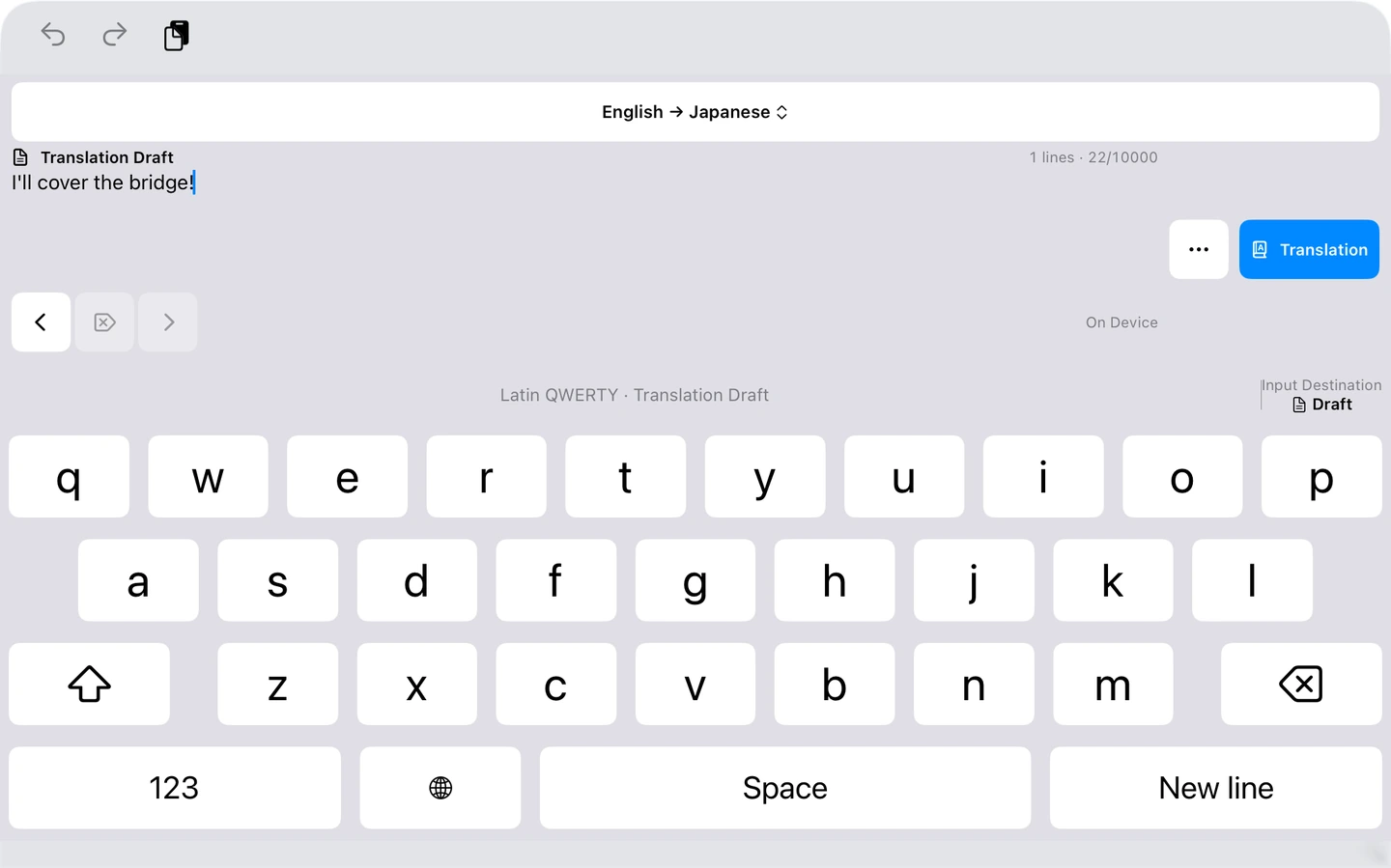
Actual iPad app keyboard UI and English translation draft
Actual iPad UI crop captured in the Simulator, using the iPad layout.

No translation text
sent to a
developer server.

Text recognition and translation use supported Apple on-device features. Source text, translations, and keyboard input are not sent to a developer translation server or a third-party translation service.

Read the Privacy Policy
  • Prepare the languages you need first

    Available languages and pairs depend on the device and OS. Initial language-data preparation may require a network connection.

  • No ads inside the keyboard

    Translation text, images, histories, and clipboard contents are not used to serve ads. In 1.2.1, eligible banners may appear on Home, How to use and the screenshot introduction. A frequency-limited full-screen ad may appear at a manual completed-task return Home. Ad delivery communicates information such as IP addresses, device data, and ad interactions. Pro and active trials have no ads.

  • Storage has a specific purpose

    Main-app handoff and source-text recovery use temporary storage with a 15-minute validity period. Screen history stores text and dates on device and can be deleted. Images and audio are not stored in screen history.

Short replies for free.
Longer text with ad-free Pro.

Ordinary typing is free. Use both keyboard and screen translation, up to 500 characters per request, without a request limit.

For short replies and a passage you want to read

Free version

No payment required

Both translation features, up to 500 characters per request.

  • No limit on translation requests
  • Edit and recover source text; view saved histories
  • Optional manual long screenshots: up to 10,000 characters, 3 images/day
  • The same allowance without changing settings when ads are unavailable
  • Ads on eligible main-app surfaces and task breaks

For longer messages and explanations

One-time Pro

Pay once

Both translation features, up to 10,000 characters per request, with no ads.

  • Includes keyboard and screen translation
  • No ads and no repeat purchase
  • Regional price shown in the app and Apple's confirmation

For previous paid customers

Both Pro features at no extra charge

Free upgrade

A valid previous Pro, standalone, add-on, or bundle purchase qualifies.

  • Both translation features with Pro access
  • No ads; do not buy again
  • Restore with the same Apple Account

The limit applies to the entire source text in one translation request. Text is never truncated to meet the limit, and drafts and saved histories are preserved. Ordinary typing and editing are not limited to 500 characters. Some text reaches the separate data-size limit first. Free translation does not depend on advertising consent, ad display, or answering the age choice. For the optional long-image allowance, you choose viewing when ads are available; otherwise the same allowance is unlocked without ads. This allowance does not apply to Shortcuts.

Existing trials keep their terms.

An active 14-day trial keeps both features; an active 7-day screen-only trial keeps that feature and its expiry. Trials remain separate from permanent purchases. Free short-text translation is available afterward. No automatic charge or renewal.

  • Restore with the same Apple Account
  • Restoration does not restart a trial
  • No ads while purchase status is being checked
  • Previous paid customers do not need to buy again

A little preparation to start.

Try your actual device, languages, and text fields.

See support and setup
  1. Check your language pair and preparation status in the app.
  2. Add Translation Keyboard in iOS Settings.
  3. Prepare the screen-translation Shortcut and reading area.
  4. Translate a short passage and review the result before use.

Before you start.

Devices, language preparation, the free plan, and Pro.

Visit support
Does it work in every game or social app?

Keyboard translation works in fields that allow third-party keyboards. Secure fields and apps that prohibit them are not supported. Compatibility with an individual game or social app is not guaranteed. Check the text field you plan to use.

Will translations appear on top of the game?

Screen translation is described here for the advertising-enabled release candidate. A Shortcut captures one screenshot; the selected region is translated and read in the main app. It does not overlay translations, monitor continuously, record the screen, or provide live subtitles.

Which languages are supported?

Languages, translation directions, and models depend on your device and OS. Check Translation Languages in the app. Keyboard writing and screen reading have separate language settings. Screen source language can be detected automatically or specified manually; ambiguous text requires checking the original and choosing a language.

Will I be charged automatically after a trial?

No. Active trials retain their original features and expiry. Afterward, free translation up to 500 characters per request remains available. Restoring with the same Apple Account does not restart a trial. Typing, settings, source recovery, and saved histories remain available.

Is Full Access required?

Ordinary typing and direct keyboard translation, including the free version, do not require it. Full Access supports shared language settings and text handoff to the main app when needed. When off, the keyboard uses its locally saved settings. See support for details.

Do I need an internet connection?

Translation uses Apple's on-device features. Initial language preparation, purchases, restoration, and ad delivery require a connection. Free translation remains available even when an ad cannot load. Network requirements for games, browsing, and sending messages depend on those services.

Can I read screen translations again later?

Screen translation saves source text, translations, and dates on device. Search, organize into folders, and delete unwanted history. Original images and audio are not stored. The app notifies you when storage limits are reached.

Does the keyboard send translated messages for me?

No. Review and edit the result, then choose Apply Here to place it in the field. The keyboard does not press Send. Check names, dates, numbers, and the message before sending it yourself.

Your next reply
starts with your own words.

For a team plan or a fan-community comment,
try Translation Keyboard where you normally write.

iOS and iPadOS 26+. Free short-text translation and ad-free one-time Pro.